

Hello everyone, welcome back to CybercityHelp. So in our last article, we explained the installation process of MySQL. We hope you were able to install MySQL successfully on your computer. If you are ready with the installation, you can proceed with this article.
However, if you are a new user who hasn’t installed MySQL yet, we request you to first install it and then continue learning without interruption. If you don’t know how to install, you may read our installation guide article here: MySQL Installation Guide.
So in today’s article, we are going to discuss how to import CSV or sample SQL files into MySQL. We will show simple commands, methods, and provide examples to make it easy to understand. So let’s get started.
How to Import an SQL File into MySQL?
So, how can you import an SQL file? Let’s understand step by step. I have one SQL file hosted on GitHub, I will provide the link. First, open that link in a new tab. You will be redirected to our GitHub repository, where you will get a “Download Raw File” option. Click that and download the raw file. Once the file is downloaded, save it in your desired directory. Here is the download link of that sample SQL file: SQL File Sample
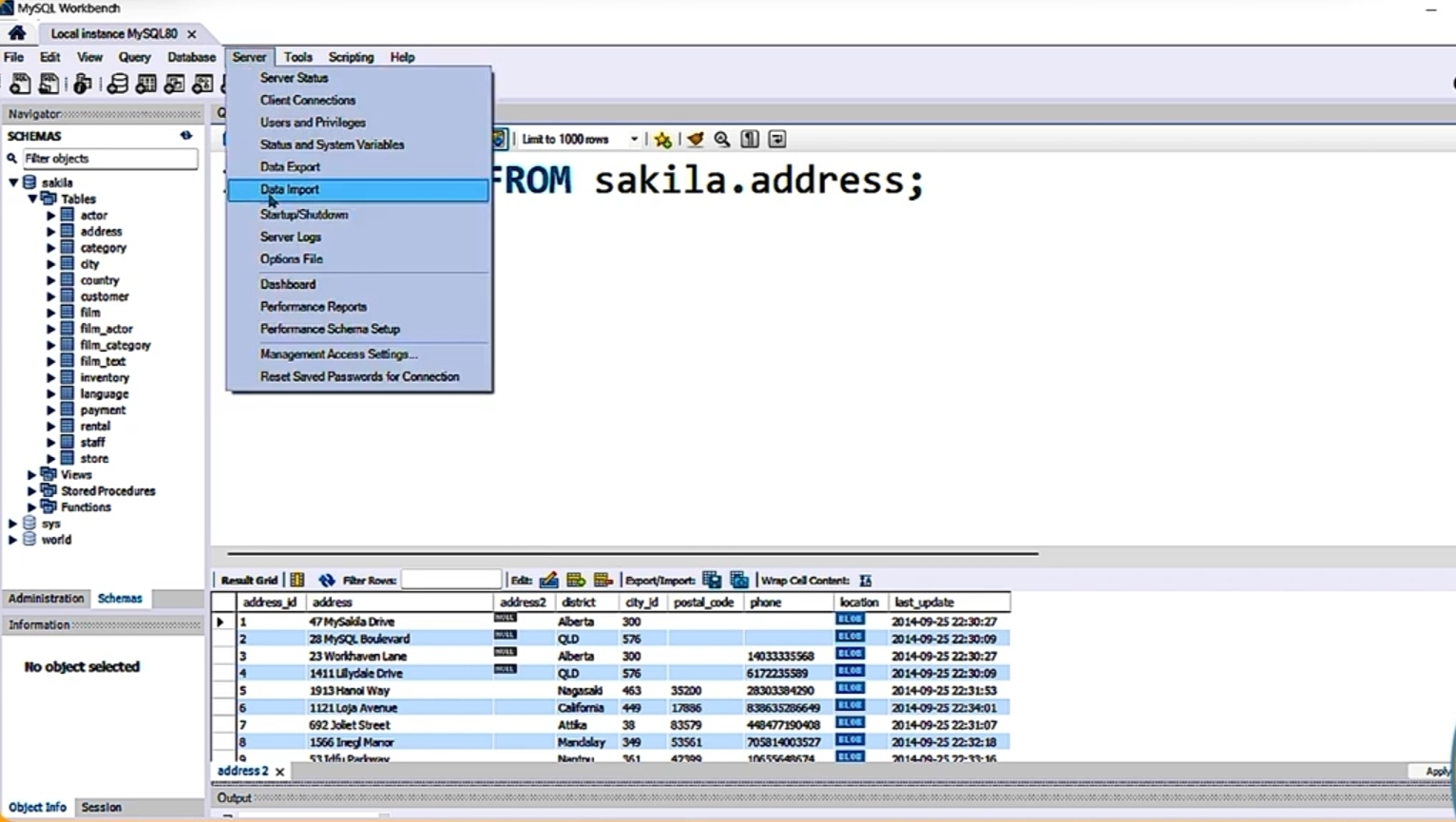
After saving the SQL file in your desired directory, open MySQL Workbench (or your MySQL client). Go to Server → Data Import.
Data Import Example:
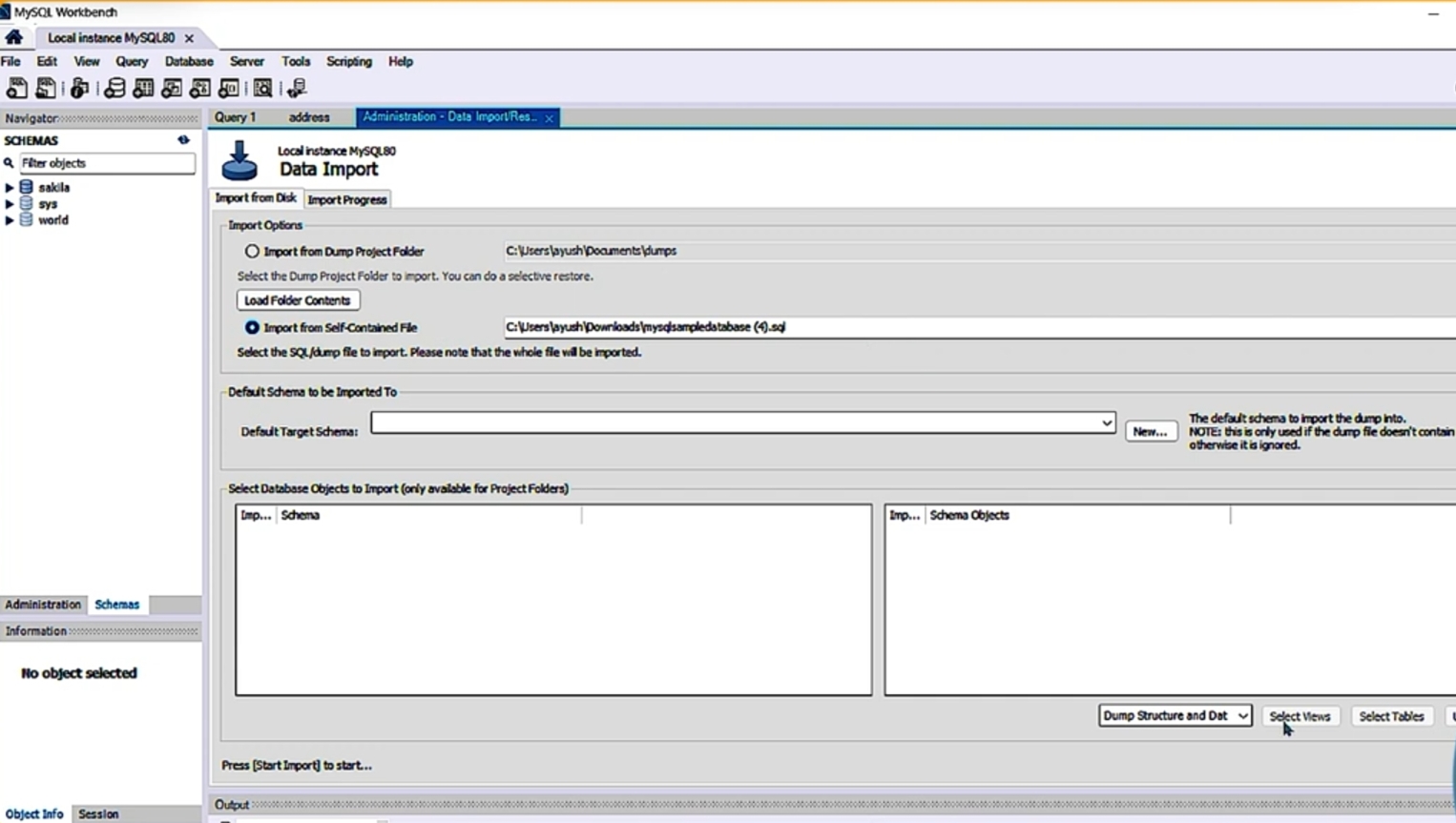
Once you click on Data Import, choose the option Import from Self-Contained File. Then select the location of the SQL file you downloaded and then click Open (or drag & drop the file). After that, click Start Import. If you don’t see the button immediately, check the Import Progress section.
Self-Contained File Example:
Once the import completes, click Refresh on the left-hand side. You should now see the Classic Models database with tables such as Customers, Employees, Offices, Orders, Payments, Product Lines, and Products. This is how you import a MySQL raw file.
Imported Data Example:

How to Import Small CSV Files into MySQL?
Now let’s discuss about importing CSV files into MySQL. First, you need a database to import the CSV into. Use an existing database or create a new one. To create a new database, open the query window and run:
CREATE DATABASE demo;Query Example:

After running this command and refreshing, you will see a new database named “demo“. Initially it will be empty.
Now right-click on Import from the top menu bar and select Table Data Import Wizard. Click Browse and choose your CSV file.
Data Import Wizard Example:

For example, open a Pizza Sales CSV file. You might see files like Orders or Pizza Types. Choose Pizza, click Open, then Next. Select Create a New Table (name it Pizza) and continue by clicking Next.
Pizza Database File Example:

You may need to map column types (text, integer, float/double, etc.). Click Next and wait then the wizard will import the records. After finishing, refresh the database and you will see the Pizza table with imported rows.
Note: In real industry workflows, data more commonly flows from SQL → CSV/XLSX rather than the other way around. Still, this method is useful for practice and small datasets.
How to Import Large CSV Files into MySQL?
The wizard works fine for small datasets (100–200 rows). For large datasets (thousands of rows), the wizard may create the table but import zero records. For large CSV files, create the table manually first with the correct data types and primary keys.
For example, create an orders table manually:
CREATE TABLE orders (
    order_id INT NOT NULL,
    order_date DATE NOT NULL,
    order_time TIME NOT NULL,
    PRIMARY KEY (order_id)
);
Query window Example:

Run the query and refresh the database (ensure the correct database, e.g., “demo“, is selected). Now the Orders table will exist. Right-click → Table Data Import Wizard, but this time choose the existing table (Orders). Map CSV columns (Order ID, Order Date, Order Time) to the table columns and proceed.
Data Import Wizard Example:

It may take a while depending on the row count. After completion, the records will be imported successfully.
So this is how you can import large CSV files into MySQL. Remember, for production-level ETL, different automated tools and pipelines are used, but this manual method is useful for practice and learning.
We hope this article made it clear how to import SQL and CSV files into MySQL. In upcoming articles, we will discuss more techniques and other methods related to data import and management. If you still have any doubts about these methods, feel free to ask in the comment section. So yeah, that’s all for today’s article, thank you so much for reading till here!!
“So keep learning, keep growing!”

15 Comments
It’s asome
This article is very interesting 😘😘😘😘
Good
Good
Nice
That’s nice to me
Good explanation
Good
Nice
That’s nice to me
Nice
Nice
Nice
Super
Nice 👍👍👍