

Hello everyone, welcome back to CybercityHelp. As we promised in our previous article, today we are here with the installation process of Python IDLE software. In our today’s article, we will learn how to download and install Python IDLE software and how you can start using it. We will explain everything step by step. So let’s get started!
How to Download and Install Python IDLE Software?
To install Python IDLE on your Windows desktop, laptop, or computer, you just need to follow a few simple steps.
Step 1: Visit python.org and Download Python
The first step is to visit the official Python website and download Python. So open your browser, type www.python.org, and press Enter. You will be redirected to the official Python homepage. If you scroll down a little, you will see sections like latest news, upcoming events, and other details.
For example:

Now go to the Downloads section where you will see all available releases. Under the releases section, you will see the latest version of Python. Just click on the button that says Download Python 3.10.2.
For example:

Step 2: Save and Configure PATH
Once you click on the download button, you will get an option to save the file. After clicking Save, the download will start. When the setup file opens, make sure to tick the checkbox that says Add Python 3.10.2 to PATH. This is a very important step, so please don’t forget to select it.
For example:
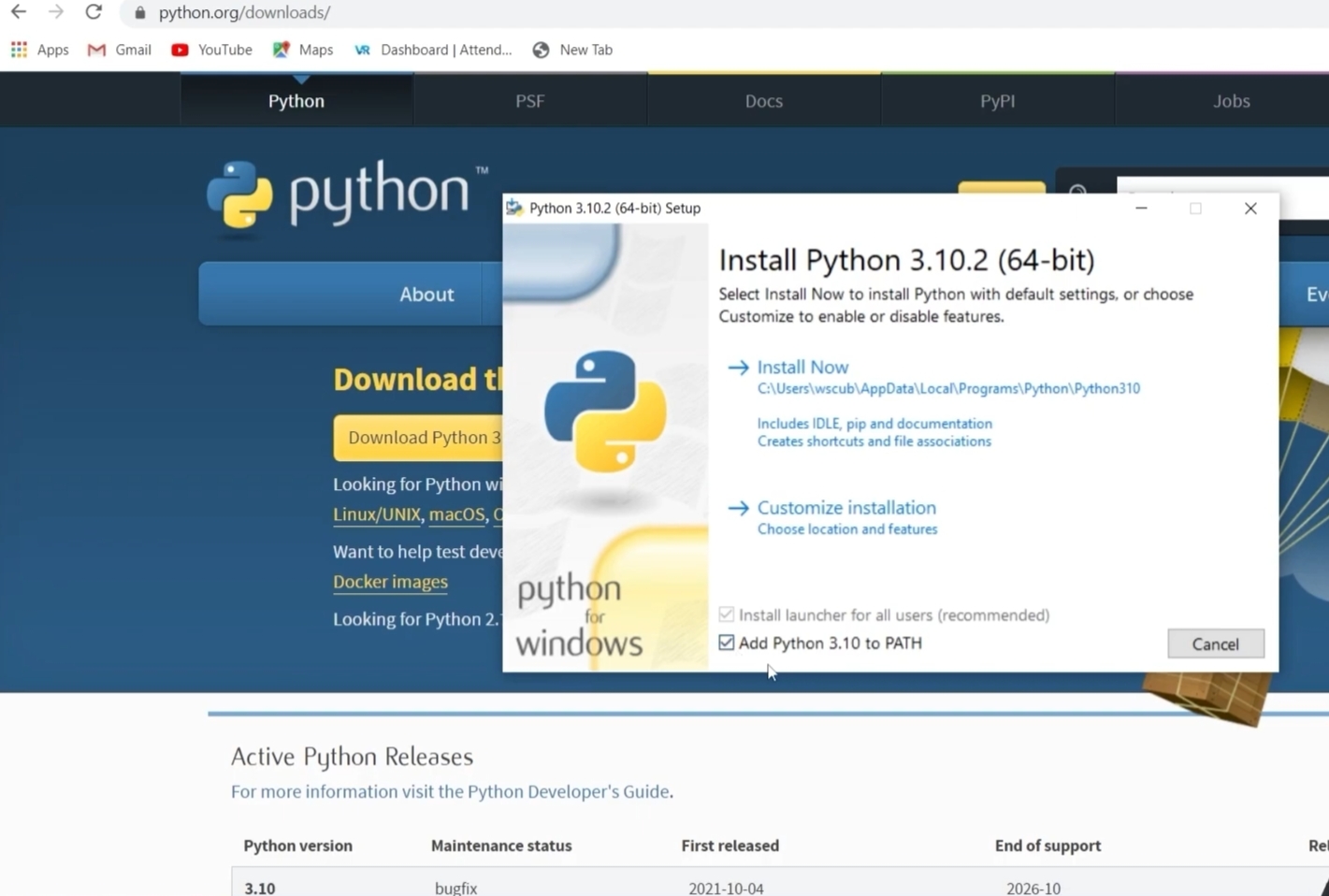
After that, click on Install Now. The installation will finish quickly. Once it’s done, simply click on Close.
Step 3: Open Python IDLE Software
Now the next step is to open Python IDLE. Go to your system’s search bar and type IDLE. You will see the Python application. Double-click to open it. Once opened, you will see the Python shell: this is where we write and execute our Python code. If you want to create a new file, go to File → New File. A new window will open where you can write your program.
For example:

While saving your file, we suggest not saving it inside the same folder where Python is installed. Save it in a different folder like your Desktop or Documents. Saving it in the Python installation folder may cause issues while running your programs.
Step 4: Run Python IDLE Software Program
Now let’s run a small program to check if everything is working fine. Write a simple statement like:
print('Hello, World!')To run your code, click on the Run option or press Ctrl + F5. You will be asked to save your file. Save it as something like python001.py or any name you want.
What is .py?
It is the file extension for Python files. Every Python program is saved with a .py extension. After saving the file, your program will execute, and the output will appear in the Python shell as Hello, World!
For example:

Alright, so this is how you can download, install, and run Python IDLE software on your Windows system. We hope everything is now clear to you. If you still have any doubts, feel free to ask us in the comment section. We are available 24×7 to help you.
In our next article, we will teach you how to download PyCharm. Don’t get confused between Python IDLE and PyCharm. PyCharm is another software we use for coding. You might be wondering why we need PyCharm if we already have IDLE?
Well, IDLE is good, but PyCharm offers a better user interface and more advanced features. But that does not mean you should delete IDLE. Don’t delete it because PyCharm also requires IDLE to function properly. Without IDLE, PyCharm may not work correctly.
We will explain this in detail in the next article while learning how to install and use PyCharm. So that’s all for today’s article. Thank you so much for reading till the end!
“So keep learning, keep growing!”

27 Comments
Yes
Yes
Nice site
I am najid
Nice Web site
Nice website
Nice
Wonder full and usefull website
WONDERFUL AND USEFUL WEBSITE
THANKS FOR THE TEAM OF THE WEBSITE
Good
Thanks
Nice
Thanks
Yes
op bro
Very interesting
Nice
Yes
Yo
Good
Super nice
Nice
Wow
Best website
Good
Hi 🤗
Good
Nice website